The Quiet History of the Cursor
The history of the cursor shows how text markers, mouse pointers, and changing shapes signal where you can type, select, or act on a screen.
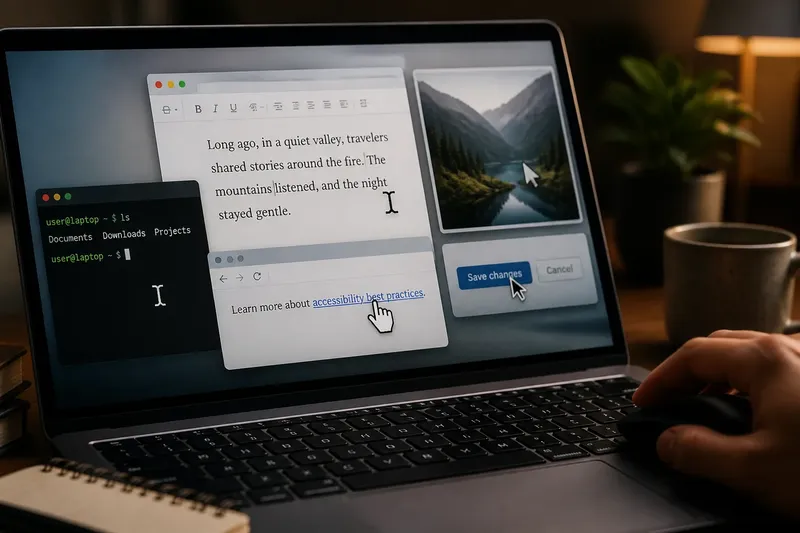
Why does a small arrow tell you where to act, while a blinking line tells you where to type? The history of the cursor is a history of two distinct signals: the text insertion point and the pointer that identifies a target. Their separate roles are visible in familiar tools such as a command prompt, a mouse-driven desktop, and a text editor.
Text insertion points
In a text editor or command-line interface, a cursor can mark the place where the next typed character will appear. A blinking vertical bar or block makes that position visible. Move it with the arrow keys, type, and the text appears at the indicated location.
This role is different from pointing at an object. The insertion point belongs within a line or passage of text; it does not, by itself, indicate that a button or icon can be activated. The distinction remains clear when you use a terminal: the text cursor sits at the prompt, ready for input, while a mouse pointer—if the environment displays one—can be elsewhere on the screen.
The mouse pointer
Douglas Engelbart’s 1968 demonstration of a computer mouse included a pointer moving across a graphical display. The example offers a concrete historical milestone: the pointer was not simply a mark in a line of text but a means of indicating a location on the screen. Later graphical desktop interfaces made this kind of interaction familiar to many users.
An arrow is useful because it points toward a location without implying that the user is editing text there. It can travel between windows, menus, and icons. A click can then select or activate an item, depending on the interface.
The two roles did not replace each other. In a word processor, the pointer can move to a sentence, while clicking places the text insertion point within it. One screen can show both signals because pointing and editing are different actions.
Shapes and signals
A pointer may change shape to suggest a different kind of interaction. An I-beam commonly appears over editable or selectable text. A hand-shaped pointer often signals a link or control. These conventions vary across operating systems and applications, so shape is a clue rather than a full explanation.
The clue is useful when it matches what actually happens. If an I-beam appears over editable text, the user can reasonably expect to place an insertion point or select characters. If a hand appears over an item, a clear label and response still need to explain what activating it will do.
Not every cursor variation is worth memorizing. A particular shape can mean different things in different applications; it is more useful to notice the action it suggests and check whether the interface responds as expected.
Hover and feedback
On a mouse-driven interface, movement can prompt a response before a click. A button may change color, a menu may appear, or a link may gain an underline. Such feedback can help show that the interface recognizes the pointer’s location.
Feedback becomes confusing if the target moves as the pointer approaches or if decorative elements react just like controls. A response should make the available action easier to recognize, not force the user to guess whether a control is active.
Hover alone is also a poor way to reveal essential information. Touchscreens have no persistent mouse pointer, and keyboard users can move focus without one. Labels, visible focus indicators, and clear state changes help communicate the same information through other input methods.
Other ways to point
A touchscreen can respond directly to a finger or stylus without showing an arrow. A keyboard user can move focus among controls, often with a visible outline or highlight. A screen reader can announce controls and their states without relying on a visible cursor.
These methods are not identical, but they expose the same design question: how does someone know what is selected, where input will go, and what an action will do? A pointer is one answer, not a requirement for every interaction.
- Observation: A blinking bar appears inside text. If typing should insert characters there, continue; if the text is not meant to be editable, clarify its appearance or behavior.
- Observation: An I-beam appears over a paragraph. If the text can be selected or edited, keep the signal; if it cannot, use a more fitting pointer response.
- Observation: A hand appears over a labeled link. If activation opens the destination described by the label, keep the pairing; if it triggers something else, revise the label or signal.
- Observation: A button changes color when the pointer arrives. If the change makes its active state clearer, retain it; if it resembles a disabled state, choose a more distinct response.
- Observation: Information appears only on hover. If keyboard focus and touch can reveal it too, the interaction remains available; if not, provide another way to expose the information.
- Observation: A control has no visible focus state. If keyboard movement still makes the current control easy to locate, preserve that cue; if not, add a clear focus indicator.
How should cursor signals read?
What is the difference between a cursor and a pointer?
In casual use, the words overlap. More precisely, a text cursor marks an insertion or editing position, while a pointer identifies a location or target.
Why does the pointer change shape?
Its shape can indicate that the interaction may have changed, such as moving from pointing at an object to selecting text. The signal works best when it matches the action that follows.
Does a touchscreen have a cursor?
A touch interface may respond to a finger or stylus without displaying a persistent pointer. It should still show which item responded and what state followed the touch.
Can a cursor explain what a button does?
Not by itself. A pointer may indicate that a button can be activated, but a concise label and a clear response explain the action and its result.
A cursor in practice
Say you open an invented text editor with a paragraph and a decorative image. You move the mouse over the paragraph and see an I-beam; you click between two words, and the insertion bar appears there. Next, you move over the image and see an arrow, which signals that the image is not being treated as editable text. The resulting distinction is clear: the paragraph offers text interaction, while the image does not.
When reading a screen, notice the cursor shape, what changes as it moves, and what happens after activation. If those signals agree with the control’s label and behavior, they make the interaction easier to understand. If they conflict, the interface needs a clearer cue than a different cursor alone.
The history of the cursor is therefore not a simple march from text to pictures. It is a record of distinct signals sharing one screen: one can mark where text goes, another can indicate a target, and others can suggest a changing state. A useful interface makes those signals legible even when no mouse arrow is present.